
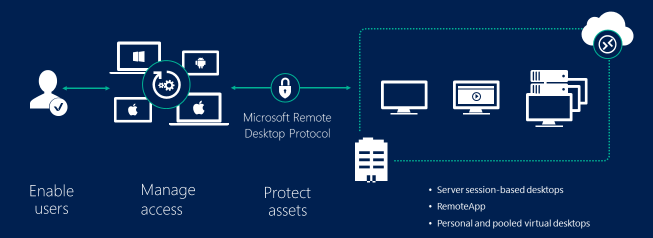
A Windows VPS allows you to access a remote Windows server from anywhere in the world. Whether you’re managing websites, running trading software, hosting applications, or using Remote Desktop services — connecting to your VPS is simple.
In this complete guide, you’ll learn:
How to connect from Windows PC
How to connect from Mac
How to connect from Android
Troubleshooting common connection issues
Security best practices
🔹 What You Need Before Connecting
Before you begin, make sure you have:
VPS IP Address
Administrator Username
VPS Password
Stable Internet Connection
If you purchased your VPS from WindowsVPS.Host, you can find these details in your client area.
🖥️ Connect to Windows VPS from Windows PC
Windows includes built-in Remote Desktop (RDP), so no extra software is require
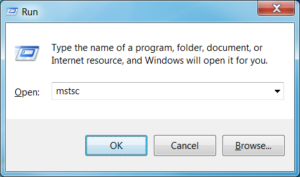
Step 1: Open Remote Desktop
Press:
Type:
Click OK
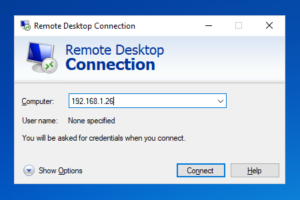
Step 2: Enter VPS IP Address
Enter your VPS IP in the Computer field
Click Connect
Step 3: Enter Login Credentials
Username: Administrator
Password: Provided by your hosting provider
Click OK
Step 4: Accept Certificate
If prompted with a security warning:
Click Yes
You are now connected to your Windows VPS.
🍎 Connect to Windows VPS from Mac (macOS)
Mac users need the official Microsoft application:
Microsoft Remote Desktop
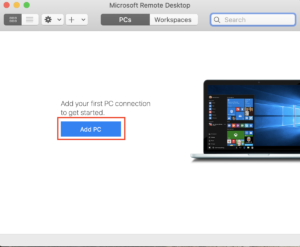
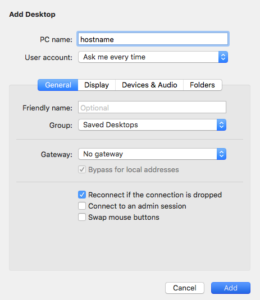
Step 1: Install the App
Download it from the Mac App Store.
Step 2: Add a PC
Click Add PC
Enter VPS IP address
Enter username & password
Step 3: Connect
Double-click the saved connection.
Accept certificate if prompted.
You are now connected from macOS.
📱 Connect to Windows VPS from Android
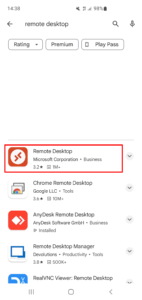
Android users need:
Microsoft Remote Desktop
Step 1: Install the App
Download from Google Play Store.
Step 2: Add VPS
Tap +
Select Add PC
Enter VPS IP
Add credentials
Step 3: Connect
Tap saved profile.
You are now connected from Android.
🔐 Security Best Practices (Very Important)
Since you run a hosting platform MVP, this section reduces support tickets and abuse:
✔ Change default RDP port (3389)
✔ Enable Network Level Authentication (NLA)
✔ Use strong passwords (Never use 123456789)
✔ Enable Windows Firewall
✔ Block outbound port 25 to prevent spam
❌ Troubleshooting Windows VPS Connection Issues
1️⃣ Remote Desktop Can’t Connect
Possible causes:
VPS is powered OFF
Incorrect IP
Firewall blocking port 3389
ISP blocking RDP
Fix:
Restart VPS from control panel.
2️⃣ Incorrect Password Error
Solution:
Reset password from client area.
3️⃣ Slow Connection
Solution:
Lower display resolution in RDP settings
Disable background image
Use closer server location
📊 Why Use Windows VPS?
A Windows VPS is perfect for:
Forex trading (MT4 / MT5)
Hosting ASP.NET websites
Running automation software
Remote work
Business applications
If you want fast NVMe Windows VPS with instant activation, check:
👉 https://windowsvps.host/cheap-windows-vps/
Conclusion
Connecting to a Windows VPS is simple:
Windows → Use built-in Remote Desktop
Mac → Use Microsoft Remote Desktop
Android → Use Microsoft Remote Desktop
Within minutes, you can securely manage your server from anywhere in the world.
❓ FAQ Section
What port does Windows VPS use?
By default, Windows VPS uses port 3389 for RDP.
Can I change the RDP port?
Yes, but it requires registry modification and firewall configuration.
Is Windows VPS secure?
Yes, if you use strong passwords and enable firewall protection.
Why can’t I connect to my VPS?
Most common reason: firewall blocking or incorrect IP address.